
I come across many people that have been asking me where the recent items list has gone in Windows 8. While the recent items list in Windows 7 (and prior) was useful, it is no longer available for Windows 8. There are a couple reasons for this with the most obvious being that we don’t have a Start Menu anymore. Possibly another may be the fact that Windows 8 Modern UI Style applications (formerly known as Metro) are meant to be “isolated” from the rest of the system. All well and good for mobile implications, devices, and Modern UI apps, but it leaves the dedicated desktop/laptop users with legacy applications longing for the old ways.
Not to fret though, there is some of this functionality still available to us, however the focus to use it is a bit different. Primarily you will find that your pinned start menu items are now functionally mimicked in the taskbar pinning. Because of this you most likely will find yourself pinning your most-used apps to the taskbar just as you did with apps to the start menu in Windows 7. I have mixed feelings about this, but irrelevantly, lets show you how to get some of your recent items functionality back.
Application’s recent list (Jump List)
Recent Items for applications (Jump Lists) are located in the application shortcut , just like Windows 7 had from the start menu . The problem though is that the list is not accessible from the start screen, but it is available if you pin it to the taskbar. I will show you how to do this using Microsoft Word 2010 as an example.
- Press the Windows Logo key on your keyboard and type “word” (you can stop as soon as you see the application appear). You can also just open the start screen and find Microsoft Word 2010 from the list of shortcuts and tiles.
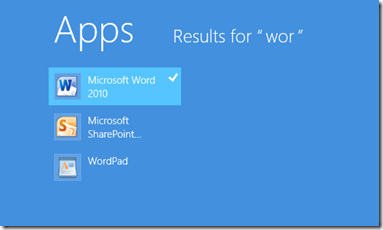
- Right-click on the application to make the options appear at the bottom of the Start Panel. Click on “Pin to taskbar” to add the application to the taskbar (Press “Esc” to exit the Start Panel and go back to your desktop).

- Once the application has been added to the taskbar, you can now see a list of recent files (Jump List) that you opened by right-clicking on it in the taskbar.
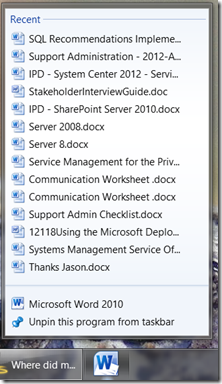


Editing setting for the Jump List
OK, now that you have added an application and have access to its recent items, you may want to make some modifications so that you can expand or shrink the number of files listed. This list of files and settings are known as the “Jump List” for the application. The Jump List properties are in the taskbar properties, just like previously in Windows 7. To view or change the settings, right-click on the task bar and select Properties from the options menu. Click on the Jump List tab and adjust your settings according to your preferences

Recent Items List
Applications and Jump Lists are all fine a good if you remember which app you were using or have it pinned to the taskbar. However, there are times that you just need to find the file you just saved from your seldom used application and locating it in the recently used list would be nice. The great thing is that this still exists, you just have to link to it.
This symbolic link to the recent items folder is similar to the Recent Items in Windows 7, however this list is of everything you have accessed and is not filtered down to a limited number of items. That means that you will have a large number of items to sort through. However, this is still way less than if you were doing a search for a file from the Start Screen. To add the recent items to your start menu perform the following (this is an object and therefore not pinnable to the taskbar as a menu folder or application):
- Open explorer and browse to C:\Users\<your username>
- Right-click on “Recent” and select “Pin to Start”
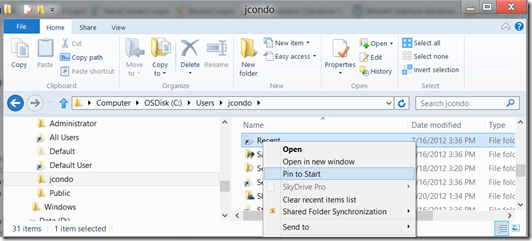
- You can then find it in the start menu and rename it to something you find faster to type in Search or leave it as is.

Bonus Tip
Now that you have the recent items folder and see all the shortcuts, how do you identify which file you want? If you hover your mouse over an item, the item’s location is displayed and you can use this information to assist you in determining the file you want.

Closing
Windows 8 does take a little getting used to. However, after using it since Spring, I have a hard time going back to Windows 7 or previous OS’s. Hopefully these tips will help you better utilize your system and make finding your recent files a little faster process.
Jason Condo
Principal Consultant, Systems Management and Operations
 Bennett Adelson Technical Blog
Note that “Recent” is a protected system file. It only appears in Explorer if you’ve done the following:
In the View tab, click Options, then the View tab (in the Options dialog box), then uncheck “Hide protected operating system files (Recommended),” then click OK.
(You can always put it back later).
LikeLike
Thanks for the comment. You are correct that the link is a system file and not viewable unless unhidden. You can get to the path without unhiding it by typing it directly in the explorer address bar or in the run command: “%userprofile%\recent”.
LikeLike
I also found it without unhiding by searching for it by typing “recent” in the same way you searched for “word” for recent MS Word files after clicking on the windows logo.
LikeLike
Update for Windows 8.1
On my PC, the “recent”, alias “recent items” folder is listed, and visible as a listed folder, in File Explorer here: C:\Users\\AppData\Roaming\Microsoft\Windows.
For me, it is not necessary to uncheck “Hide protected operating system files (Recommended)”, or to uncheck “Show/Hide Hidden items”.
The “recent” folder is always visible.
Jason, is this a change from Win8 to Win8.1, or generally valid for all Win8 and Win8.1 installations?
LikeLike
The recent file in windows 8 is useless as it is filled with a bunch of folders used for windows update and doesn’t display just the recent documents that I have edited.
LikeLike
This folder will contain the history of all locations and files you have opened previously. I would suspect that you are seeing that history because you were browsing around looking through the system.
LikeLike
Hi..I had the same problem.
I discovered that ‘recent places’ is a different place to your ‘recent’ files folder
I found my ‘recent files’ folder here:
C:\Users\\AppData\Roaming\Microsoft\Windows\Recent
then included a ‘date accessed’ column, and then date sorted it..it did the trick 🙂
LikeLike
Thanks for the comment. You are correct, however they both point to the same location. The system link “C:\Users\\Recent” is a link to “C:\Users\\AppData\Roaming\Microsoft\Windows\Recent” (“Recent Items”).
I find it easier to type the shorter path in a run command or explorer: “%userprofile%\recent”.
LikeLike
No, the problem (at least in my case) is that the “C:\users\\recent” shortcut is simply not there (yes I’ve used the correct method(s) to locate it). I have a fresh Win 8.1 install, which may be the reason.
LikeLike
Update for Windows 8.1
On my PC, typing “%userprofile%\recent” into the Run command, or into File Explorer’s address box, produces a Windows 8.1 error. It can’t find it.
However, if you type the shell:recent command into either place, it opens the “recent”, alias “recent items” folder and lists it’s contents in File Explorer.
Jason, does “%userprofile%\recent” really work for you in Win8?
If yes, then why the difference between Win8 and Win8.1?
LikeLike
Could you share what version of Windows 8.1 are you running? I was able to confirm this (“%userprofile%\recent”) worked on a fresh install of Windows 8.1 Pro. As well, see my reply to Bob’s comment. The symbolic link in the root of the profile is to enable backwards compatibility for code that expected the recent items to be in the old location from back in Windows XP days and prior. The change to the AppData path aligns with where Microsoft wants to arrange data so that it can migrate from system to system, either in an enterprise settings with roaming profiles, user migration tools, or eventually to the cloud. This is the same path as in Windows 7 and, I think, Windows Vista although I don’t have a test machine readily available to confirm.
You can also use “%AppData%\Microsoft\Windows” to find the Recent Items folder as you suggested in a later comment. You can confirm the system variables you can use by opening a command prompt and typing “SET”.
LikeLike
Update for Windows 8.1 (to my previous post – can’t edit it)
I think Jason meant, that typing “%APPDATA%\Microsoft\Windows\Recent” (not “%userprofile%\recent”) into both Run and File Explorer’s address bar, would work.
On my PC, it does.
LikeLike
I got an access deny message! this is only me? What am I doing wrong?Thanks
Angelo
LikeLike
At least in WIn 8.1 (I haven’t tried 8.0), dragging the “Recent Items” folder to the taskbar (instead of pinning it to the start menu) will pin it to the File Explorer jump list, assuming you have Explorer pinned to the taskbar, of course (although I think it’s there by default).
Note: my Fresh Win 8.1 installation doesn’t have the shortcut link in the [user] folder – I had to go to “C:\Users\Mike\AppData\Roaming\Microsoft\Windows\”.
LikeLike
Bob,
For my PC, I can confirm all of your statements above for Windows 8.1.
See my queries above questioning Jason on apparent difference Win8 and Win8.1, as for me, I find no more logic if every release, upgrade, or change of the Windows 8 OS has different basic shell commands, CLSID’s and paths and virtual folders for identical items.
It would be nice if someone could systematically clarify what is going on for the “Recent”, alias “Recent items” folder, and its cousin, the “Recent places” folder, between Win8 and Win8.1, and in comparison to Win7.
How are they related? Where are they physically stored? Are both virtual folders? Are they accessible with identical, or different shell commands? Why does the “recent”, alias “recent items” special windows folder have no shell {GUID}/{CLSID} – that I can find – anywhere?
Why, why, why, Microsoft?
LikeLike
Thanks Bob for your information. On a fresh install of Windows 8.1, the C:\Users\\recent symbolic link still exists. It is now a hidden protected operating system file and can only be found by going into options and unhiding it. Unfortunately this also exposes other critical system files that Microsoft (and IT staff) would not want users messing with accidentally. As you noted, this is also is properly found in “%userprofile%\AppData\Roaming\Microsoft\Windows\Recent Items”. However, even with %userprofile%\Recent” not exposed, I was able to access it from the explorer address bar or from a run command by typing it in. This cannot be searched for from the Start screen though.
I like the idea of dragging it to the task bar (once you unhide and can see it) as it adds a pinned item to an explorer window so that you can access it faster.
LikeLike
it appears that the jump list is built for the default application for the file extension, change the association and the list starts building for the new application, e.g. *.txt Notepad to Wordpad…
LikeLike
You are correct. The jumplist is updated for the application that has the file association, not the application that opened or saved it.
LikeLike
More precisely, Jason: Windows 8/8.1 has been programmed to only update the jumplist if a new file/folder/item is “opened” its corresponding application. Note that the Windows 8/8.1 OS has been programmed, so that newly created (physically on disk), but “Un-Opened” files/folders are NOT LISTED in its jumplist, or the recent items folder. Try it, and see! Other users have previously noted this illogical Windows OS behaviour.
LikeLike
Just like Microsoft – take away one of the ew good things and make it difficulkt to get it back…
LikeLike
This worked for me, thanks.
LikeLike
I copied Jason’s suggestion to use %userprofile%\recent … I then right click>copy address and I made a shortcut on the desktop. Now all I have to do is click the desktop pop up and its there! much happier now. thanks everyone
LikeLike
Hi
What if I wanted explorer jump list to show recent instead of frequent. Anyway to do that?
LikeLike
I’ve cleared the recent files on windows ten. What I did was, since the “recent files/recent items” no longer appear under the “favorites menu”, I searched for it on my drive c. There appeared quite a few folders “recent”. I cleared most of them. What happened next was that, the frequent folders no longer appear and when I pinned folders to quick access, it says the “parameter is incorrect”. What should I do to restore the ability to pin folders to “frequent folder”?
LikeLike
I’ve cleared the recent files on windows ten. What I did was, since the “recent files/recent items” no longer appear under the “favorites menu”, I searched for it on my drive c. There appeared quite a few folders “recent”. I cleared most of them. What happened next was that, the frequent folders no longer appear and when I tried pinning folders to quick access, it said the “parameter is incorrect”. What should I do to restore the ability to pin or naturally pin folders to “frequent folder” after I opened files within a folder/s?
LikeLike
The best solution that I’ve found is : classicshell.net which is free and gives you the Win7 style menu.
LikeLike